
Automations
Hand repetitive work to the GsKnora Assistant on a schedule—for example a daily public-news digest, regular knowledge base checks, or summarizing working documents. Open Automations in the sidebar to create tasks, view runs, and handle pending approvals.
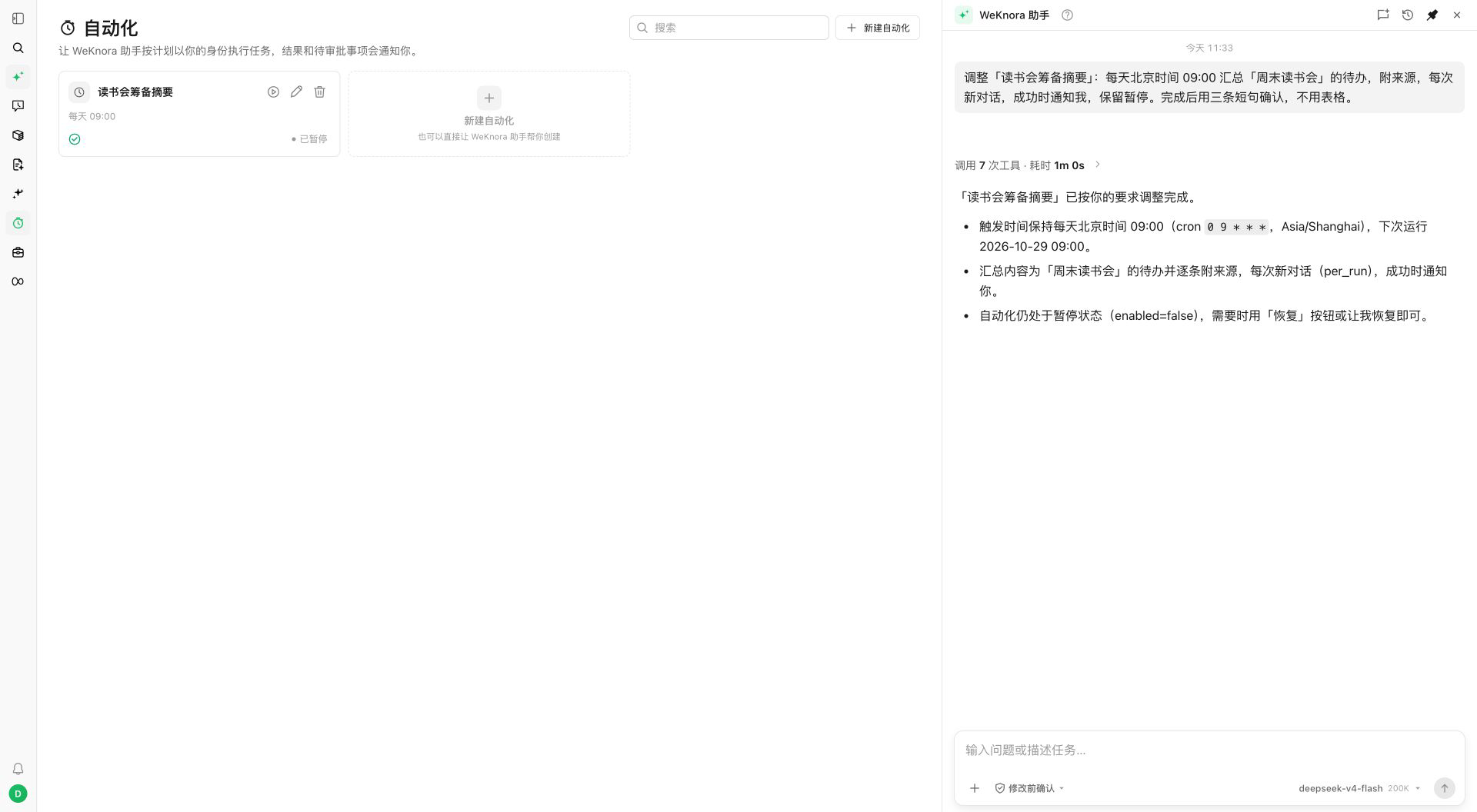
Create a task
You can tell the GsKnora Assistant: “Every day at 9:00, summarize pending book-club tasks and let me confirm before creation.” It structures the task and schedule for your review. Or configure manually from the Automations page:
- New automation—name and description. Specify sources, expected deliverables, and completion criteria.
- One-off or recurring execution; verify the time zone. Recurring tasks use a Cron expression with a minimum interval of 5 minutes.
- Session mode, execution permissions, and notifications. Use the same session for continuous context; or a new session each run, optionally carrying the last successful result.
- After save, check the next run time; trigger a manual run once to validate, then leave the schedule active.
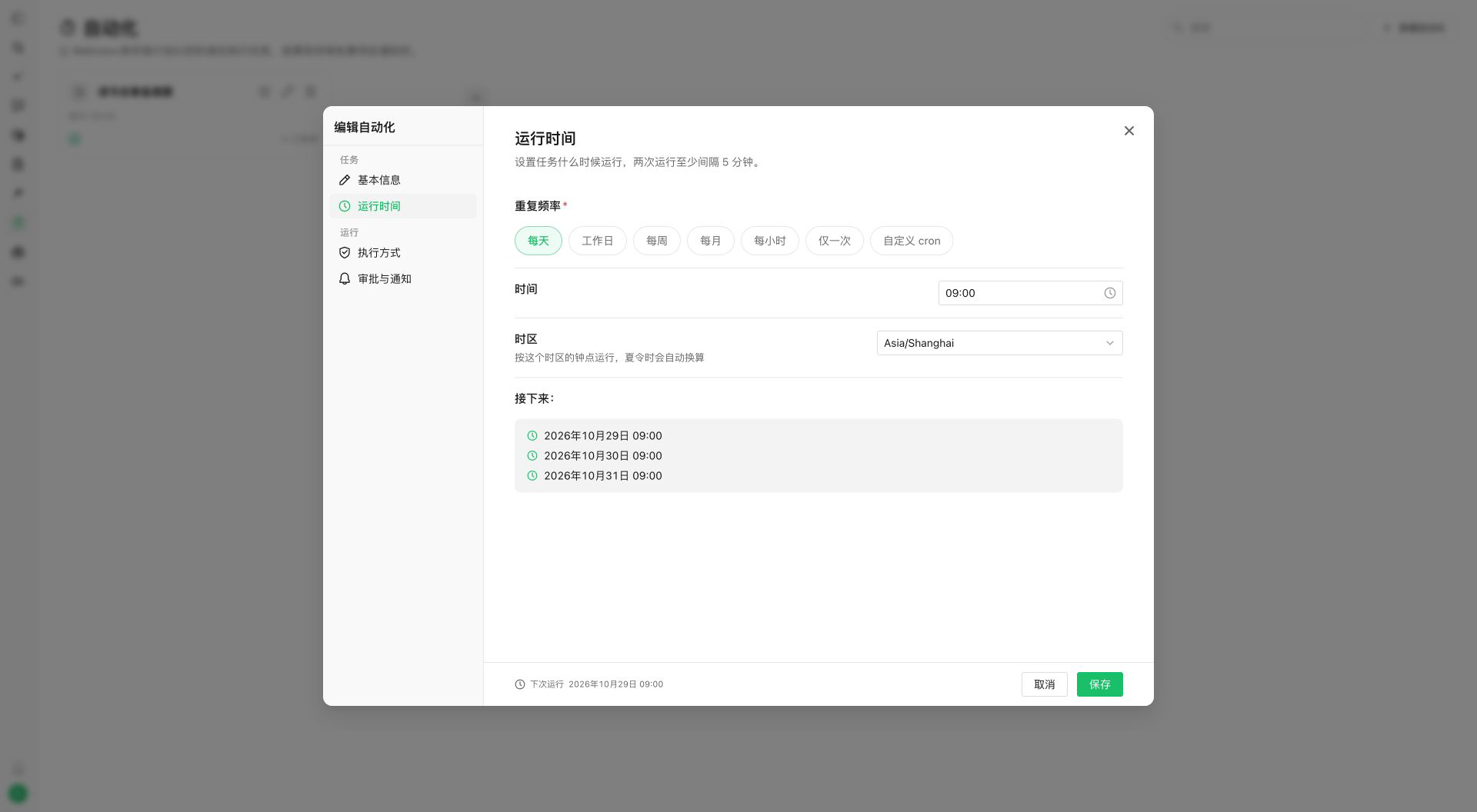
Automations run as the GsKnora Assistant; you can assign a dedicated model, otherwise the assistant’s model configuration applies. For other agents, describe the split in the instruction—the assistant coordinates.
Runs and results
Task detail lists runs and outcomes. Open the session for the full trace, or ask the assistant to analyze a run. Pause, resume, or run manually; canceling one run does not delete the schedule.
| Setting | Effect |
|---|---|
| Time zone | Scheduled time; API defaults to UTC when unset. Prefer an explicit IANA zone (Asia/Shanghai, etc.) |
| Missed run | Skip, or one catch-up run after recovery—not every missed slot |
| Overlap | If the previous run is still active: skip or enqueue |
| Run duration | Default 30 minutes, max 4 hours; approval wait time is not counted |
| Approval wait | Default 24 hours, from 5 minutes to 7 days |
| Success notification | Optional in-app notification; results and approvals also appear in the notification center |
After three consecutive failures the task pauses—investigate before resuming. After service interruption, a run with uncertain outcome may move to “needs attention”; the system does not automatically replay writes that may already have completed.
Permissions and approvals
Automations run with the creator’s identity and resources the creator can access at run time. There is no permanent user credential; role or resource changes affect the next run. Only the creator manages the task; automation APIs are not open to API keys.
When approval is required, the run pauses and notifies. Open the pending item and verify operation, resources, and impact. Unattended execution does not replace free-form user answers—put prerequisites in the task description.
For recurring approval needs, configure a long-lived grant on the task, scoped to the operation and resources. Grants remain subject to current permissions, scope, expiry, revocation, and forced-approval rules. After revocation, later operations follow the approval policy again. See Execution permissions and approvals.
Deployment and capacity
Defaults: up to 100 tasks per workspace, 4 concurrent runs per process, 200 recent runs retained per task. The scheduler is part of the application—keep the app running and back up the database; sleep or stopped service prevents on-time execution.
See also: GsKnora Assistant · Automations API