
Chrome extension (knowledge management assistant)
The Chrome extension “Knowledge Management Assistant” lets you query a knowledge base from a web page sidebar, capture the current page, and save Markdown notes.
Install it from the Chrome Web Store. It requires an existing GsKnora instance. Imported content is stored on the connected instance.
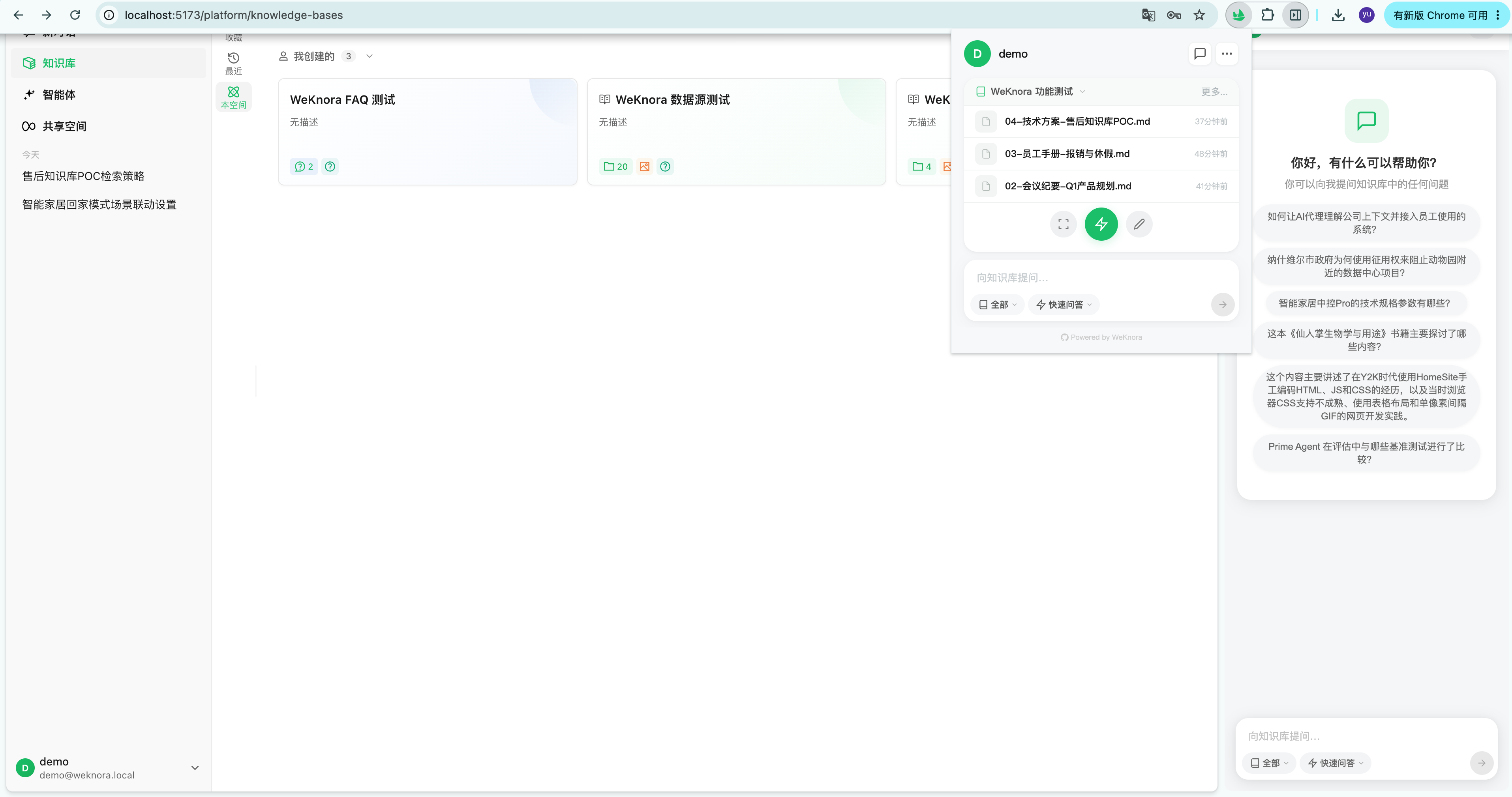
Main features
| Capability | Description |
|---|---|
| Knowledge base Q&A | Conversation panel in the sidebar, switch between knowledge bases; quick / deep / precise modes to ask without leaving browsing |
| Web capture | Saves the URL, extracts body via AI or manual selection, writes to a chosen knowledge base |
| Markdown notes | Built-in editor to save content to a knowledge base |
| Shortcuts | Customizable shortcuts to ask a question, open the sidebar, etc. |
Install and connect
See Settings → Publish integrations → Chrome extension for the guide and copy your instance API URL. Steps:
- Get API credentials: under Settings → Publish integrations → API integration, copy the API key and API URL (the guide’s Open API info button goes there). Create a dedicated key and restrict capabilities if needed (at minimum search and ingestion; see the API key chapter in Tenants, users, and authentication);
- Fixed port (desktop recommended): with GsKnora Desktop, set a fixed port on the API integration page (e.g. 37841). Otherwise the port changes on each launch and the extension will not reconnect;
- Install the extension from the Chrome Web Store;
- Connect in the extension: open settings, Enterprise / developer mode, enter API URL and API key.
After connecting, list knowledge bases and ask a question to validate credentials and network.
Troubleshooting
| Symptom | What to check |
|---|---|
| Cannot connect | Is the API URL reachable from the browser machine (container address, localhost on remote deploy); fixed port on desktop |
| 401 / 403 | Key revoked; capabilities covering search and ingestion; if the key is limited to certain knowledge bases, is the target allowed |
| Nothing in the knowledge base after capture | Document list and parse status; processing = in progress; failure detail on the document page |
Related documentation
- Credentials and capabilities: Tenants, users, and authentication
- Ingestion pipeline: Document pipeline
- Other integrations: Claw Skill, CLI, Go SDK